This is the help documentation for the paint clone in p5.js.
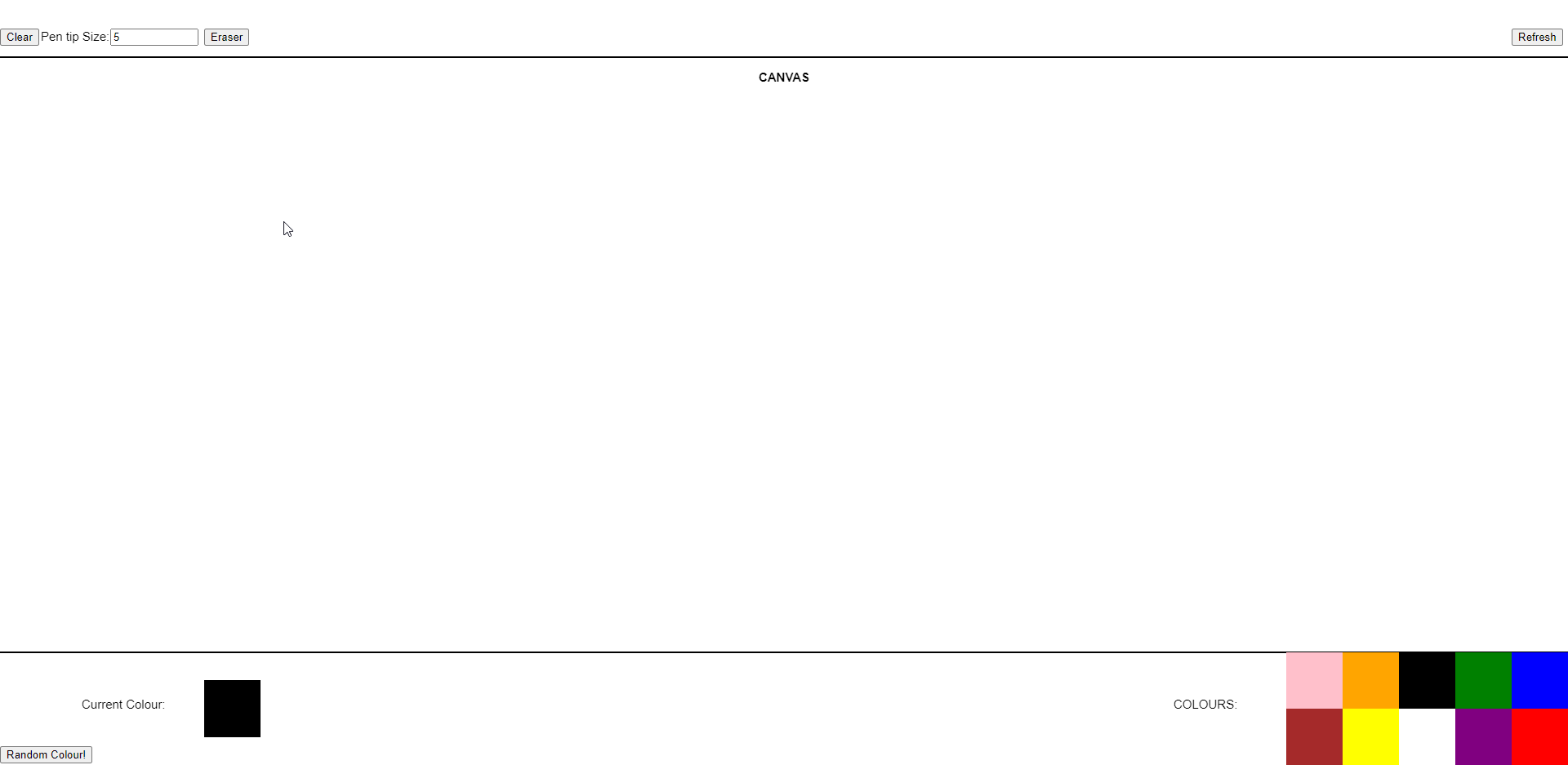

This is the main user interface.
The top bar contains all the pen & other settings and controls while the bottom contains the Colour controls. The rest of the controls are on the keyboard. The middle part between the lines is the Canvas. This is the place that you can draw on.
These are the settings.


On the left you have the "Clear" button. This clears the canvas from all drawings, like this:

The middle blank controls the size of the pen tip. It is the diameter of the pen tip in pixles. The default is 5, but you can change it if you want.

In case you want to erase something, press the "Erase" button. Go back to drawing by clicking on one of the colour boxes.
There might be cases when the pen covers up the text on the top bar (Only when using really large pen sizes). Use the refresh button to refresh them. This only re-render the text, it does NOT clear your canvas.

At the bottom, you have a bunch of coloured boxes. Click on them to select a colour for your pen. The square on the left tells you which colour is currently selected.

We have a Random Colour Generator to generate random colours! Just press the button at the most bottom left to generate a random colour.
There are some keyboard controls to use. You can use that to change the pen tip of the pen. Pressing l gives you a line, r gives you rectangles and o gives you circles.
You can also press x to clear the canvas.
And there you have it! Let your creativity flow! Enjoy!